How to install Cherry TV
Install Cherry TV on your TV in about 5 minutes with the free Downloader app. You only need your TV remote and an internet connection.
Part 1Get the Downloader app
-
1Step 1 of 10
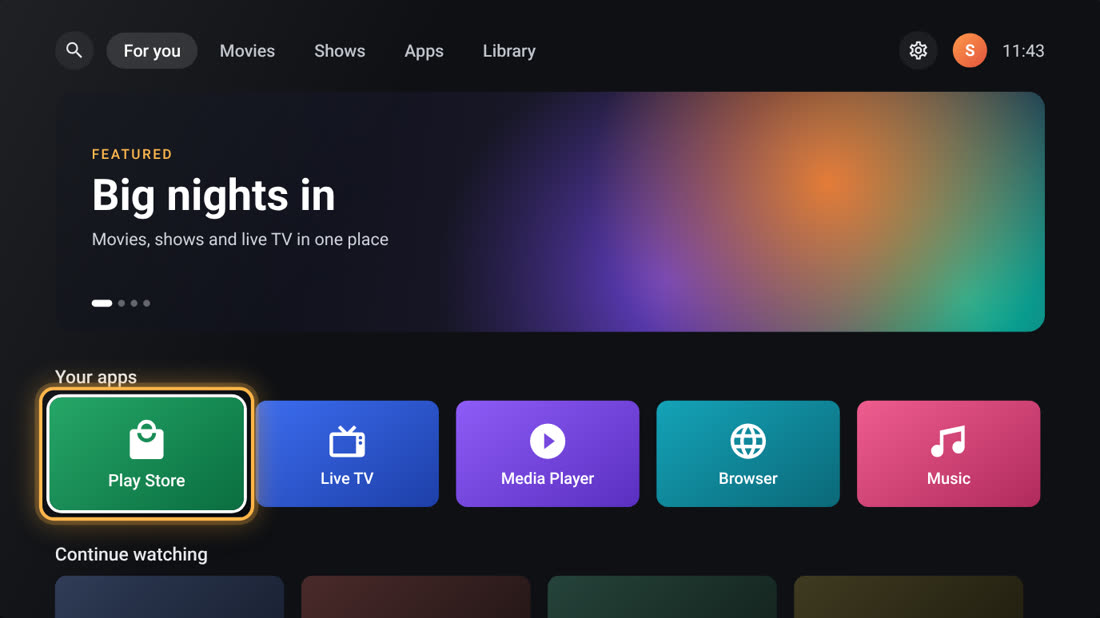
Open the Play Store
On your TV’s home screen, press ▼ to move down to your apps. Highlight Play Store and press OK.
-
2Step 2 of 10
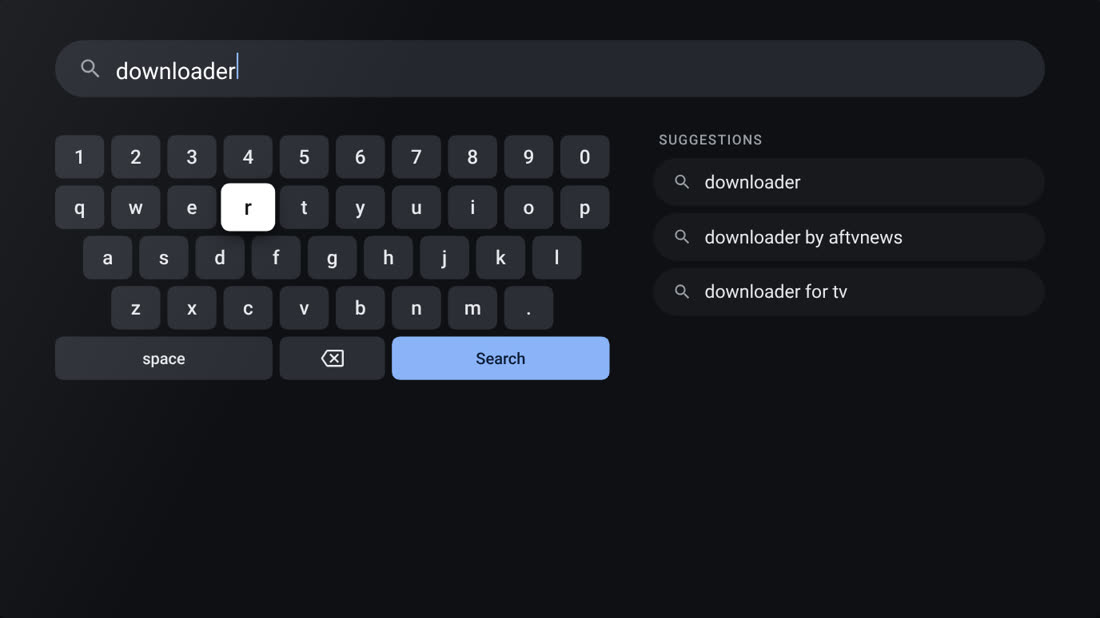
Search for Downloader
Select the search icon at the top and type downloader with the on-screen keyboard. Pick downloader from the suggestions.
-
3Step 3 of 10
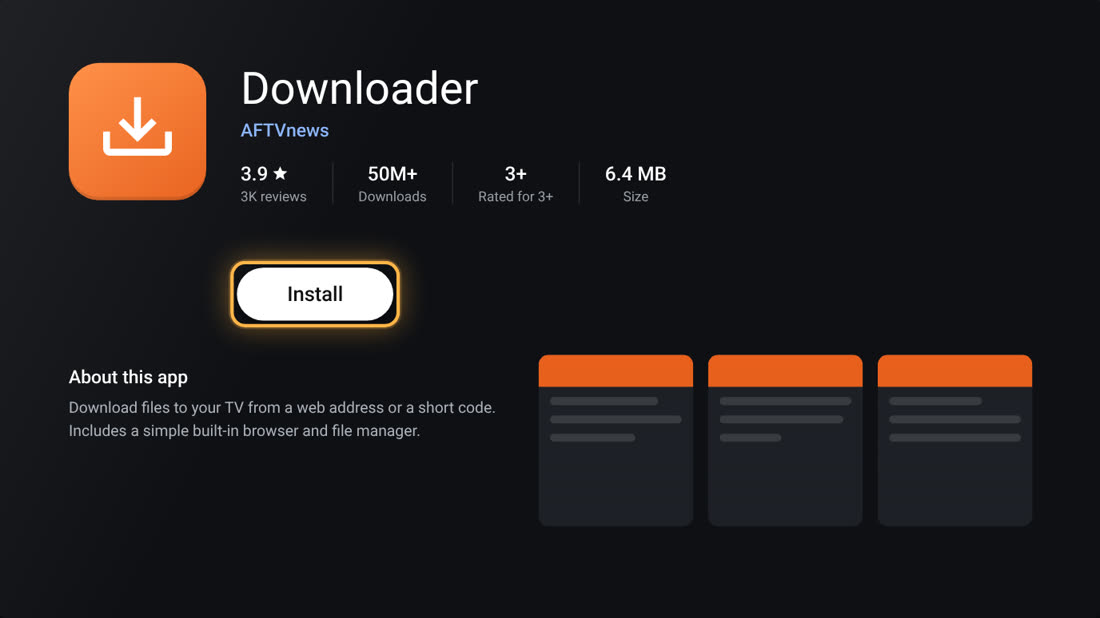
Install Downloader by AFTVnews
Choose the orange Downloader app made by AFTVnews and press Install.
It’s free, about 6.4 MB, with 50M+ downloads.
-
4Step 4 of 10
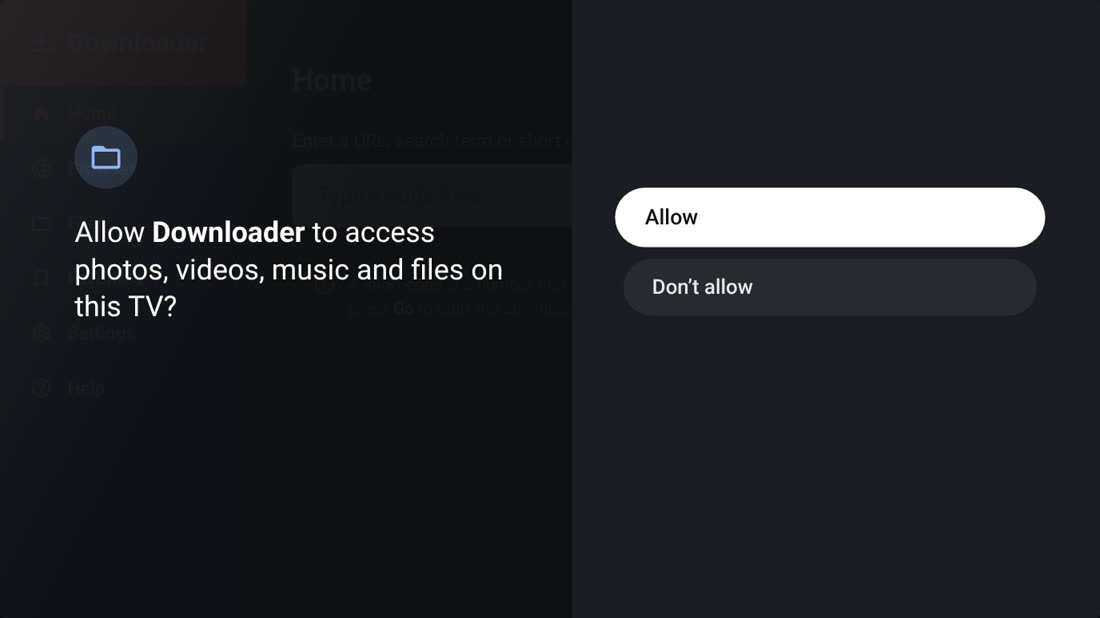
Open Downloader and allow access
When it finishes, press Open. If Downloader asks for access to photos, media and files, choose Allow. It needs this to save the download.
Part 2Download Cherry TV
-
5Step 5 of 10
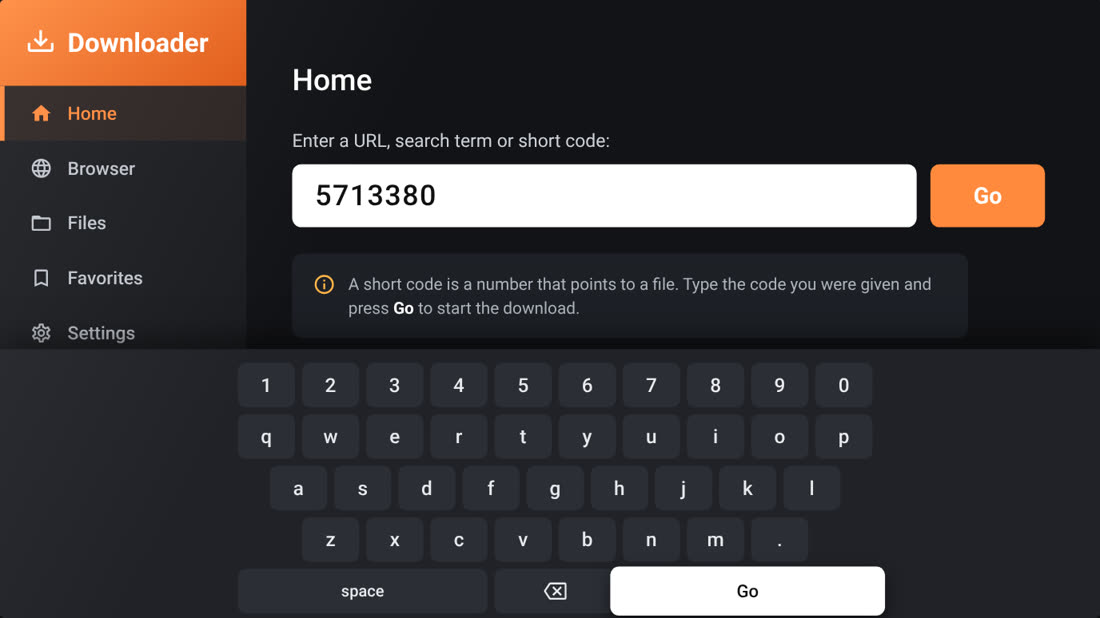
Enter the code 5713380
On Downloader’s Home screen, select the box, type 5713380 with the keyboard and press Go.
Double-check the seven digits before pressing Go.
-
6Step 6 of 10
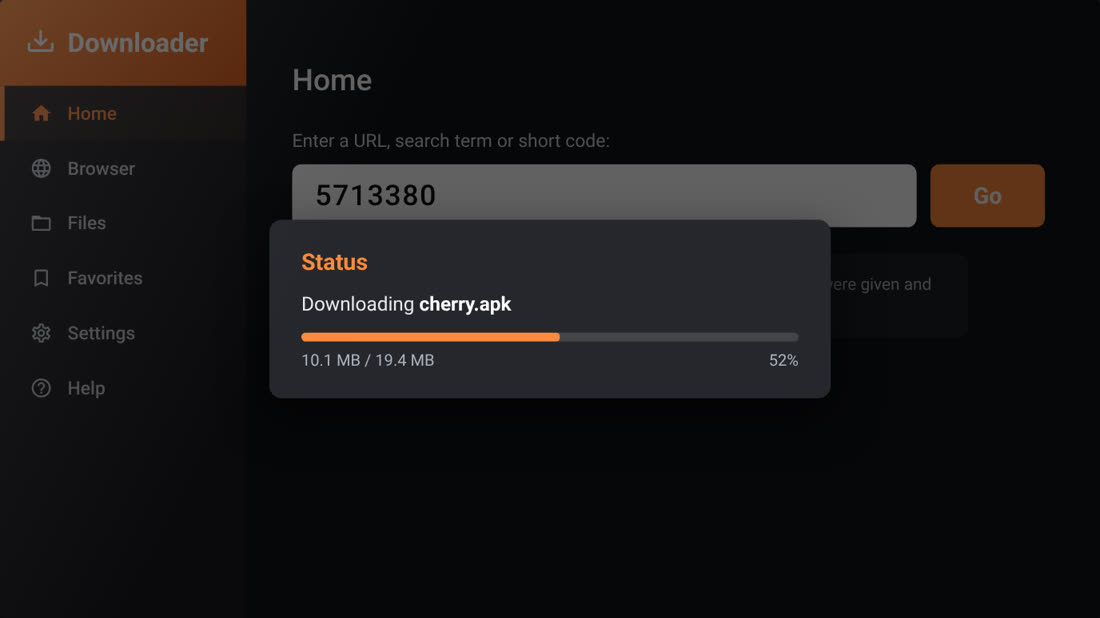
Wait for the download
Downloader fetches the Cherry TV installer, cherry.apk (about 19 MB). When you see File downloaded successfully, go to the next step.
Part 3Install and open Cherry TV
-
7Step 7 of 10
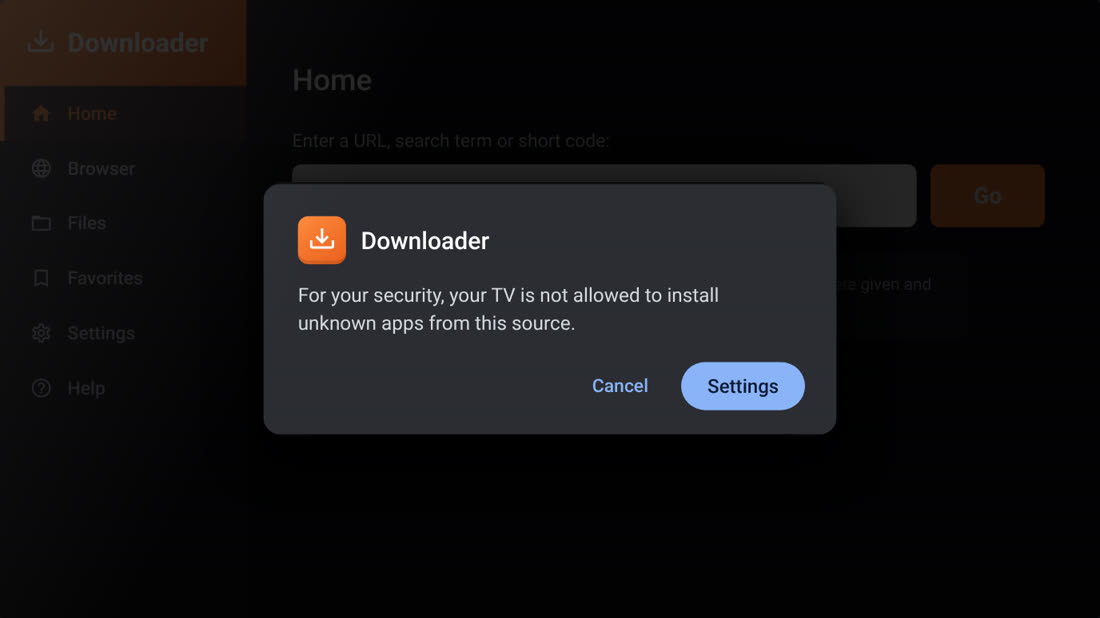
Press Install, then Settings
Press Install. The first time, your TV says it isn’t allowed to install unknown apps from this source. That’s normal. Choose Settings.
-
8Step 8 of 10
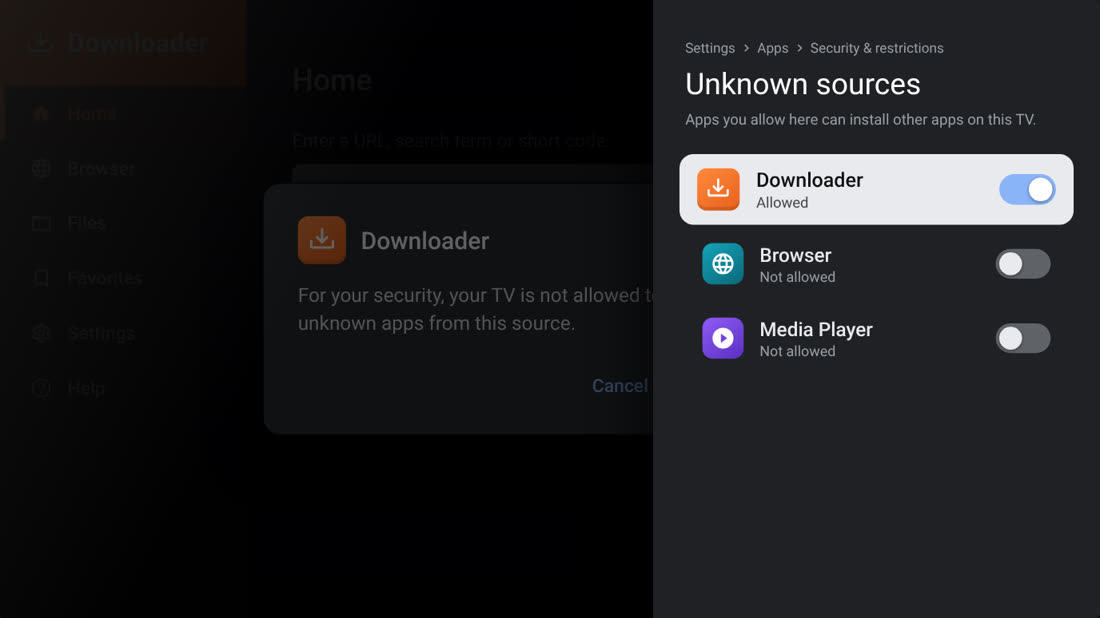
Allow Downloader to install apps
In Unknown sources, highlight Downloader and press OK to turn the switch on. Then press Back. You only do this once.
Google TV: don’t see this screen?Turn on Developer mode first, then come back:
- Open Settings › System › About
- Highlight Android TV OS build and press OK 7 times, until it says you are now a developer
- Go to Settings › Apps › Security & restrictions › Unknown sources and turn on Downloader
-
9Step 9 of 10
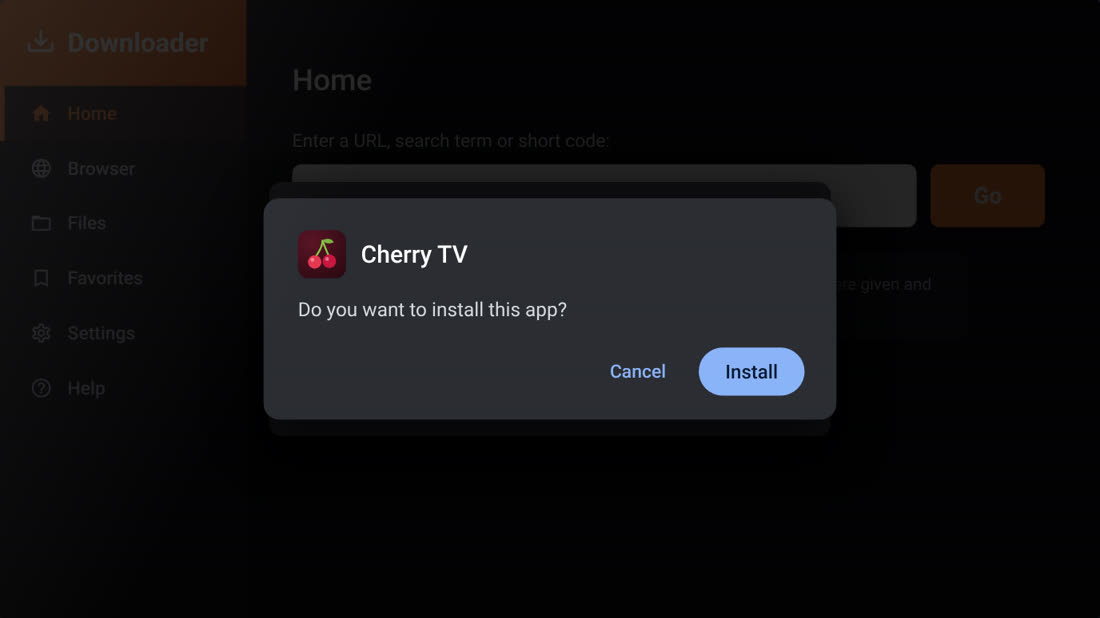
Install Cherry TV
Back in Downloader, press Install again, then Install on the confirmation screen. Wait a few seconds until it says App installed.
-
10Step 10 of 10
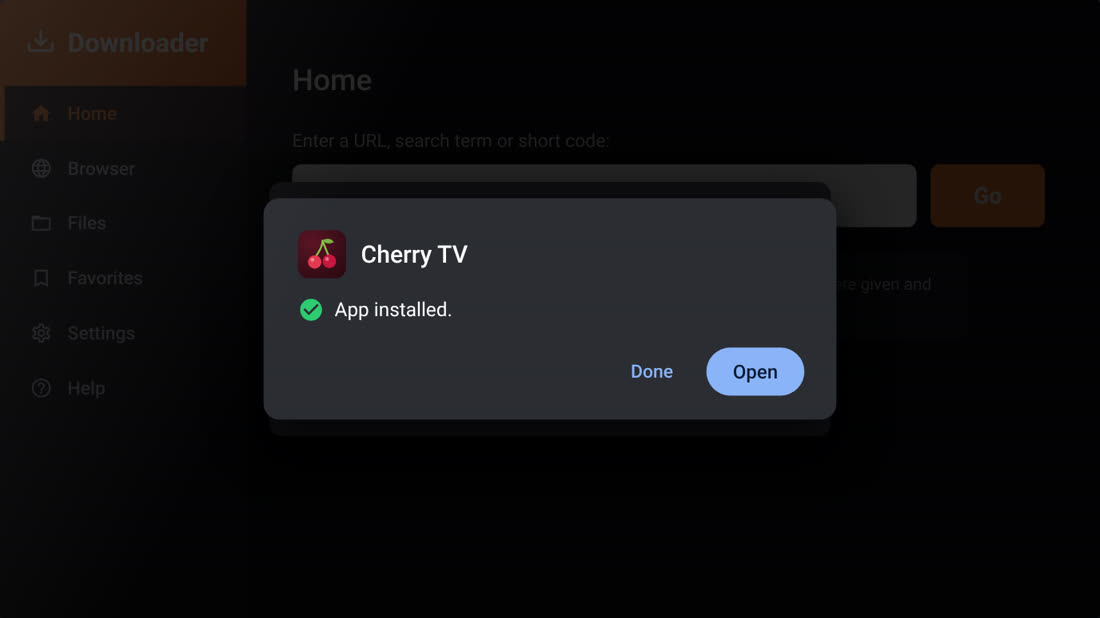
Open Cherry TV
Press Open and accept the terms. Cherry TV is ready to use. Next time, you’ll find it under Apps on your home screen.
Free up space afterwards. In Downloader, open Files and delete cherry.apk. Cherry TV stays installed.
Direct downloadGet the Cherry TV APK
Want to skip the Downloader code? Download the Cherry TV APK file directly. This is handy on an Android phone or tablet.
Download Cherry TV (APK)https://cherry-tv-get.cherrytv-app.workers.dev/phone.apk
- Tap Download Cherry TV (APK) and wait for it to finish.
- Open the file from your notifications or your Downloads folder.
- If your phone asks, allow your browser to install unknown apps, then go back.
- Tap Install, then Open.
HelpIf something doesn’t work
I can’t find Downloader in the Play Store
Search for “Downloader by AFTVnews” and check that your TV is signed in to a Google account. The right app has an orange icon and is made by AFTVnews.
The code doesn’t download anything
Make sure you typed 5713380 exactly and that your TV is connected to the internet, then press Go again.
I don’t see Unknown sources
On Google TV, turn on Developer mode first: Settings › System › About, then press OK on “Android TV OS build” 7 times. After that, Unknown sources appears under Settings › Apps › Security & restrictions.
It says “App not installed”
This usually means the TV is low on storage or an older copy of Cherry TV is already installed. Free up some space or uninstall the old version, then repeat step 9.